skip to main |
skip to sidebar
Tip: You can copy a Discussion Board forum within a course or to a group in a course.
Here’s how to do it:
Enter the course in which you would like to copy a forum. Click the Discussion Board course menu link. Click the Copy button next to the forum that you would like to copy.
On the next screen, type a Name for the copied Discussion Board forum. Select whether you would like to copy the Entire forum or just the Forum Settings. NOTE: If you copy the Entire forum, all posts will be copied with the forum. If you copy only the Forum settings, no posts will be copied.
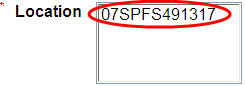
Select the location to which you would like to copy the Discussion Board forum. You can select to copy the forum into the course Discussion Board area* or to one of the course groups, if you enabled groups in your course. Click Submit to submit your copy request. You will receive confirmation via email that the forum copy was successfully completed.
*NOTE: The course Discussion Board area is designated by your course ID. If you do not have any groups in your course, only the Discussion Board area will be listed in your Location box.
 Want more information?
Step-by-step tutorials are available at: http://www.twu.edu/blackboard/Bb72Tutorials.aspVisit our website: http://www.twu.edu/blackboard,
or call: (940) 898-3706
Tip: Create and manage groups using the Advanced Group Management tool.
Here’s how to do it:
Navigate to the Control Panel of your course and click Advanced Group Management. Click Add Group to add a new group. Name the group and select the communication tools for that group. Click Submit.
Add users to your group by placing a checkmark next to the group name and clicking View/Assign Users. Click Modify and place a checkmark next to the users you want to add to the group. Click Submit.
Discussion Forums in groups: When you enable the discussion board tool in a group, a forum for that group is automatically created. You can create additional forums in a group and copy those forums to other groups using the Copy button for each forum. NOTE: Every graded discussion forum in a group will automatically generate a Gradebook item.
Want more information?
Step-by-step tutorials are available at: http://www.twu.edu/blackboard/Bb72Tutorials.aspVisit our website: http://www.twu.edu/blackboard,
or call: (940) 898-3706
Tip: When allowing multiple attempts on a test, you can choose which of the students’ attempts will be counted as the final score for that test.
Here’s how to do it:
Add the test to a content area and click the Modify button and then click Modify Test Options. Click Allow Multiple Attempts and select whether you will allow unlimited attempts or a specific number of tests. Make the test available and select dates for availability. Click Submit.
Click Control Panel and click Gradebook. Click the name of the Gradebook item for the test you added. Click Modify Gradebook Item.
Click the drop-down menu next to the words “Score Attempts Using” and select one of the following options:
(1) Grade of last attempt
(2) Grade of first attempt
(3) Highest grade
(4) Lowest grade
(5) Average of grades
Click Submit to save your changes.
If you do not select one of the options above, the Gradebook will default to Grade of Last Attempt. This means that, when students take a test multiple times, the Gradebook will record their last attempts as the final scores for that item.
Want more information?
Step-by-step tutorials are available at: http://www.twu.edu/blackboard/Bb72Tutorials.aspVisit our website: http://www.twu.edu/blackboard,
or call: (940) 898-3706
Tip: You can broadcast course announcements via email to your students.
Here’s how to do it:
Navigate to the Control Panel of the course in which you want to make an announcement. Click Announcements and click the Add Announcement button. Type your announcement subject and message. Select the display dates for the announcement, if any, and select whether or not the announcement will be permanent. NOTE: Non-permanent announcements disappear from the main announcements page after 7 days and they are listed after permanent announcements in the course view.
Check the box next to Email this announcement to all course users. Click Submit. A copy of the announcement will be sent to the email addresses listed by users in Blackboard. By default, the email addresses for Blackboard users are their Portal email accounts. However, if a user chooses to change his or her listed email address in Blackboard to an alternate account (e.g. yahoo, hotmail, gmail), the announcement email will be sent to the user’s alternate account.
NOTE: Some email accounts may categorize Blackboard emails as SPAM. We recommend that you confirm with students that they are receiving your emails that are sent through Blackboard.
Want more information?
Step-by-step tutorials are available at: http://www.twu.edu/blackboard/Bb72Tutorials.aspVisit our website: http://www.twu.edu/blackboard,
or call: (940) 898-3706
Tip: You can copy an item from one course to another without having to use the Course Copy function on the Control Panel.
Here’s how to do it:
Enter the course from which you want to copy an item. Click on the content area where the item is located. For example, if you want to copy a folder that is located in Course Documents, click on the Course Documents course menu link. Click the Edit View link on the top right corner of the page.
Click the Copy button next to the item you want to copy. On the next screen, select the destination course from the drop-down list of courses. NOTE: Only courses for which you are an instructor are listed in this drop-down list. Click Browse to find a destination folder within the destination course. Also select whether you would like the item to be removed from the current course after it is copied to the destination course.
Click Submit to submit your copy request. You will receive confirmation via email that the item copy was successfully completed. Navigate to the destination course to confirm that the item was successfully copied.
Want more information?
Step-by-step tutorials are available at: http://www.twu.edu/blackboard/Bb72Tutorials.aspVisit our website: http://www.twu.edu/blackboard,
or call: (940) 898-3706
Tip: You can arrange the course menu to help students to navigate your course easily.
Here’s how to do it:
Log into Blackboard and enter your course. Click Control Panel and click Manage Course Menu. Change the order of items on the course menu by clicking the number next to a course menu item and selecting a new rank number for the item. Change the name of a course menu item by clicking the Modify button next to the item. You may also change the item’s availability by clicking the Modify button.
To add a course menu item, use one of the + buttons at the top of the page:
Examples of course menu items:
+Content Area: adds an empty course area to which you can add content. Example: Use this feature to add a Syllabus content area or a Readings content area. +Tool Link: adds a link to a course tool from the course menu. Example: Use this feature to add a link to email from the course menu. +Course Link: adds a link to a course item from the course menu. Example: Use this feature to link to a document in the course.+External Link: adds a link to an external website from the course menu. Example: Use this feature to add a link to a supplemental external website, such as a professional organization website or a wiki.
Want more information?
Step-by-step tutorials are available at: http://www.twu.edu/blackboard/Bb72Tutorials.aspVisit our website: http://www.twu.edu/blackboard,
or call: (940) 898-3706
Tip: You can combine your students from multiple sections into one Blackboard course shell. This allows you to run a course in one Blackboard shell rather than in multiple Blackboard shells.
Here’s how to do it:
Log into Blackboard and enter the course from which you would like to copy students. For example, if you are combining Section 21 into Section 20, enter the shell for Section 21. Click Control Panel. Click Course Copy.
Type in or browse for the Destination Course ID. The Destination Course is the course into which students will be copied.* Place a checkmark next to Tasks and Enrollments. Click Submit. You will receive an email notifying you that the course copy is complete.
To confirm that the students were copied, enter the shell to which students were copied, click Control Panel, and click List/Modify Users. Click the Search button to view all enrolled students. After you have confirmed that your students were copied to the correct shell, make the other section(s) unavailable so that students will go only to the combined section.
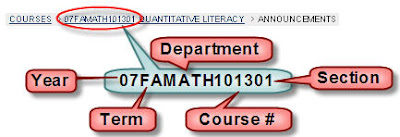
*Need help finding the course ID?
Want more information?
A step-by-step tutorial is available at: http://www.twu.edu/blackboard/Bb72Tutorials.asp
Visit our website: http://www.twu.edu/blackboard,
or call: (940) 898-3706


